
 By MUNJAL BLOG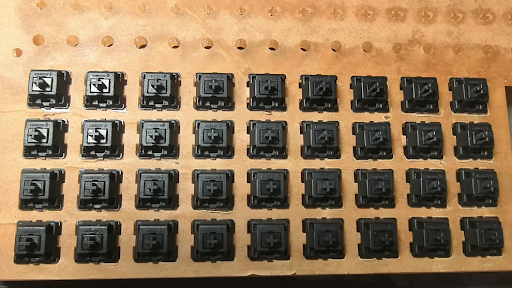
Choosing the right keyboard switch is one of the fastest ways to improve typing comfort, gaming performance, and long-term reliability. This guide explains how switches work, outlines the main keyboard switch types (linear, tactile, clicky), recommends the best keyboard switches by use case, and walks through basic maintenance and modding steps so you can get the feel and sound you want.
What is keyboard switch?
A keyboard switch is the mechanical component beneath every keycap that registers a keystroke. Unlike membrane/rubber-dome keyboards, mechanical switches use springs and contact mechanisms to provide a repeatable, durable actuation. Most reputable mechanical switches are rated for 50–100 million actuations, which translates to years of heavy daily use. Switches shape three core aspects of the typing experience: feel (how the key moves), sound (how loud/quiet it is), and actuation characteristics (force and travel).
Because switches directly affect speed and accuracy, choosing between types of keyboard switches—and within those types—matters for specific scenarios like coding, data entry, or competitive gaming.
Types of keyboard switch — Linear, Tactile, Clicky
Most switch ecosystems fall into three broad categories: linear, tactile, and clicky. Each category contains dozens of specific models across brands (Cherry, Gateron, Kailh, etc.), and each model can feel quite different even inside the same category.
Linear switches
Linear switches move smoothly from top to bottom with no tactile bump. They are preferred for rapid repeated presses—common in FPS and competitive gaming. Popular examples: Cherry MX Red, Gateron Red/Yellow, Kailh Speed series.
Tactile switches
Tactile switches provide a small bump mid-press that gives finger feedback without a loud click. They’re a favorite among typists and office workers because the bump helps confirm actuation and reduce errors. Examples: Cherry MX Brown, Gateron Brown.
Clicky switches
Clicky switches offer both a tactile bump and an audible click. They deliver a very satisfying, retro-style typing experience but are louder—often unsuitable for shared offices. Examples: Cherry MX Blue, Kailh Box White.
How do I choose the right switch?
The best keyboard switches for you depend on three things: your environment (office vs. private), your primary task (typing vs. gaming), and your preference for sound/feel. Below are practical scenarios and recommended switch directions.
Scenario: Office / Shared Workspace
Choose quiet tactiles or silent linears (e.g., Cherry MX Silent, Gateron Silent Red). These maintain good feedback while keeping noise low.
Scenario: Competitive Gaming
Fast linear switches with light actuation (Kailh Speed, Gateron Red) are common among gamers because they allow rapid repeated presses and short pre-travel.
Scenario: Heavy Typing / Content Creation
Tactile switches (Cherry MX Brown, Boba U4) reduce typos and feel comfortable for extended sessions due to the feedback bump.
Scenario: Hobbyists / Enthusiasts
Enthusiasts often choose clicky or specialty tactile switches and then mod (lubing, spring swaps, foam) for a personalized sound and feel.
Key factors to evaluate when choosing: actuation force (measured in grams), travel distance, pre-travel, noise level, and compatibility with your keyboard’s PCB (MX-stem vs. proprietary).
Popular switch brands and what they mean (HMX, Keygeek, BSUN, Gateron, Wingtree, Kailh, Cherry)
Hundreds of switch models exist, but a handful of brands dominate due to reliability, availability, or unique engineering:
Cherry
The historical benchmark—Cherry MX switches are known for consistent quality. MX Red (linear), MX Brown (tactile), and MX Blue (clicky) remain staples.
Gateron
Gateron gained popularity for smooth feel and competitive pricing. Their Reds and Yellows are often recommended as “value” smooth linears.
Kailh
Kailh offers diverse lines (Box, Speed, Choc) and has been popular for innovation and lower-cost alternatives to some premium switches.
HMX
Produce proprietary switches tuned for great acoustic and typing performance
Keygeek
silky-smooth with a distinct feel ; highly regarded by professionals who type for long stretches.
For a deep dive into types and detailed brand pages you can reference user guides like Keychron’s types of keyboard switches or Kinetic Labs’ coverage of tactile/linear/clicky differences.
Maintenance, modding, and compatibility (lubing, spring swaps, hot-swap PCBs)
One reason mechanical switches stand out is the ability to customize. Below are beginner-friendly modding and maintenance options that produce noticeable gains.
Lubing
Applying lubricant to switch sliders and springs reduces friction and dampens ping. A properly lubed switch feels smoother and sounds less harsh.
Spring swaps
Changing springs alters actuation force and rebound characteristics. Lighter springs = faster actuation; heavier springs = more stability.
Hot-swap vs. Soldered PCBs
Hot-swap keyboards let you try different MX-style switches without soldering—great for finding the best match. Note: proprietary switches (some Razer/Logitech/Topre variants) are not MX-compatible and require matching PCBs/keyboards.
Tip: even small changes (foam dampening, switch-lubing) often produce “big” improvements in sound and feel with minimal cost and effort.
Quick comparison: Linear vs. Tactile vs. Clicky
| Switch Type | Key Feel | Noise Level | Typical Use Case | User Scenario Example |
| Linear | Smooth, no bump | Quiet–Medium | Gaming, fast typing | Rapid WASD presses in FPS games |
| Tactile | Noticeable bump | Quiet–Medium | Typing, office work | Long coding sessions—fewer accidental presses |
| Clicky | Bump + audible click | Loud | Hobby/at-home typing | Retro mechanical typewriter feel at home |
Conclusion
Selecting the right keyboard switch is a balance of feel, sound, and use case. Gamers will often favor fast linear switches; heavy typists typically choose tactiles for feedback and accuracy; clicky switches suit hobbyists and those who enjoy audible feedback. Start by identifying your environment and primary tasks, then test a few switches (hot-swap keyboards make this easy). For practical shopping, reviews, and to explore our curated selection, visit our keyboard switch collection.
This guide uses commonly accepted testing benchmarks and user feedback. Avoid absolute claims—feel and preference are subjective, so try switches for yourself whenever possible.
FAQs
What’s the difference between linear, tactile, and clicky switches?
Linear switches travel smoothly with no bump, tactile switches have a bump mid-press for feedback, and clicky switches combine a tactile bump with an audible click.
Are all switches compatible with every keyboard?
Most MX-style switches are cross-compatible with MX-compatible PCBs and keycaps. Proprietary switches from some brands (Razer, Logitech, Topre) require matching keyboards and are not always MX-compatible.
How can I make my switches quieter?
Lubing switches, adding internal foam, using dampened/silent switch variants, or using softer keycaps can reduce noise. For shared offices, consider tactile or silent linears.
 Prime Star
  Aliza Beth